
Canvas overview
The canvas is the large central area of the Site Designer workspace. It is where you design, arrange, and edit the content of your page. Understanding how the canvas works will help you move faster and get predictable results.
A real browser engine, not a simulation
Most traditional design tools render a representation of your design — a pixel-accurate preview that approximates how a browser would display the content. Site Designer’s canvas is different: it renders your page inside an actual browser engine.
This means:
- Fonts, spacing, box models, and layout behavior all match exactly what your visitors will see.
- CSS features like
flexbox,grid, andclamp()work in the canvas because a real browser is processing them. - There is no “preview vs. reality” gap. What you see on the canvas is what gets published.
This approach is called live WYSIWYG (What You See Is What You Get). Changes to styles, content, and structure take effect immediately in the canvas without any render lag or refresh step.
Selection indicators
When you click an element, a blue border appears around it to indicate it is selected. This border is a canvas overlay — it does not exist in your actual HTML and will not appear on your published site.
When you hover over an element without clicking, a lighter blue highlight appears. This hover highlight helps you understand which element your cursor is over before you commit to selecting it, which is especially useful in dense layouts.
The breadcrumb selection path
At the bottom of the canvas, a breadcrumb bar shows the full nesting path of the currently selected element. For example:
body > .page-wrapper > section.hero > div.container > h1
Each segment in the breadcrumb is clickable. Click any ancestor to move the selection up to that element without having to click directly on it in the canvas. This is the fastest way to select a parent container that is obscured by its children.
Zoom controls
The canvas can be zoomed in or out to inspect fine details or see the full page at once.
| Action | Shortcut |
|---|---|
| Zoom in | ⌘+ |
| Zoom out | ⌘− |
| Reset to 100% | ⌘0 |
Zoom level is displayed in the bottom-right corner of the canvas. Zooming does not affect your actual design — it only changes how the canvas is displayed in the workspace.
X-Ray mode
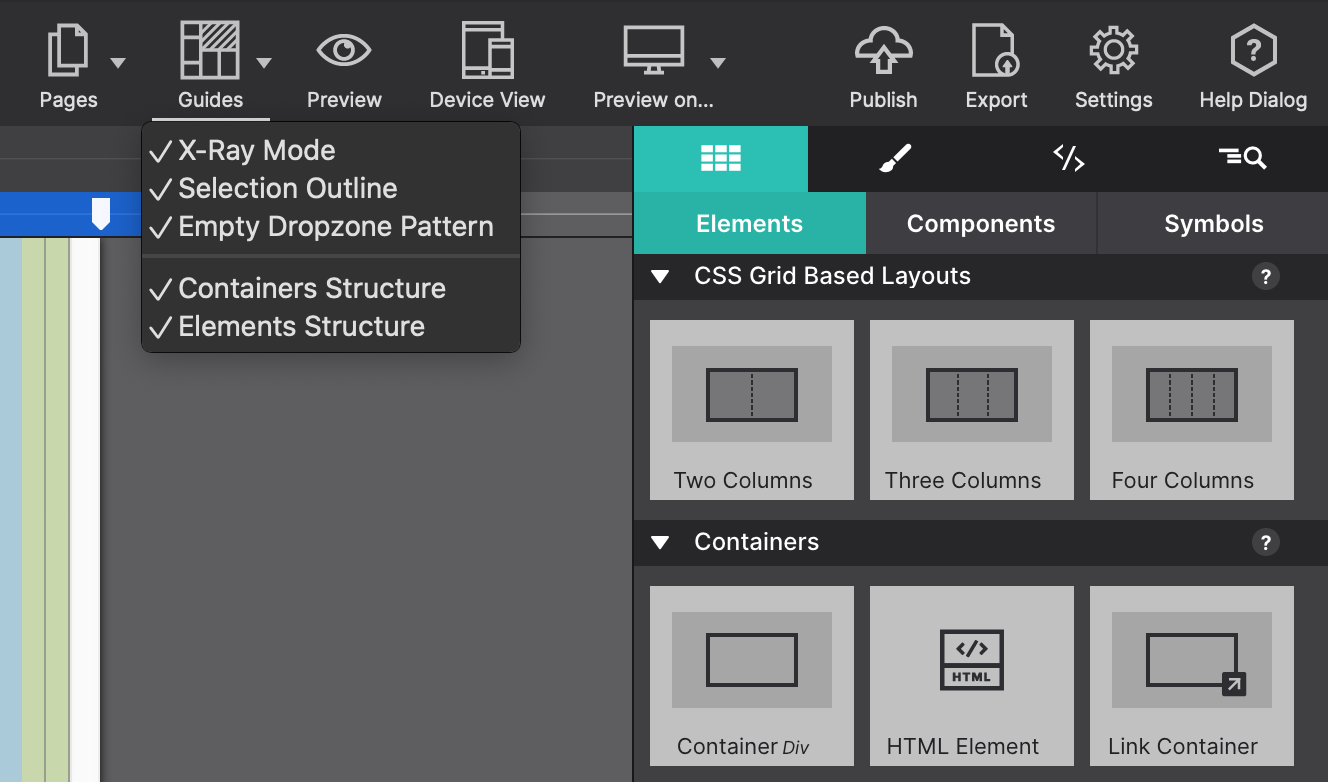
X-Ray mode lets you see how element containers are structured at a glance. When enabled, all grid options are turned on, background images are removed, and an opacity is applied to all elements — revealing the grid configuration. Elements are color-coded for easy recognition. Toggle X-Ray mode from View → X-Ray Mode.
Grid overlay
Site Designer can display a grid overlay on top of the canvas to help you align elements visually. Toggle it on or off from View → Show Grid. The grid does not add any CSS to your project — it is a canvas-only guide.
Grid settings (column count, gutter width, and color) are adjustable under Settings → Canvas → Grid.
What the canvas does not show
A few things are intentionally hidden from the canvas view to reduce clutter:
display: noneelements — hidden elements are not visible on the canvas. Select them through the Outline pane instead.- Pseudo-elements (
::before,::after) — these are rendered but cannot be selected directly on the canvas. Edit them via the CSS pane. - Animations in their final state — animated elements always appear in their starting state on the canvas. Use Live Preview to see animations play.