
Page Manager reference
The Page Manager is the central hub for your site’s page structure. Every page you create, duplicate, reorder, or delete is managed here. Think of it as the file browser for your project.
Opening the Page Manager
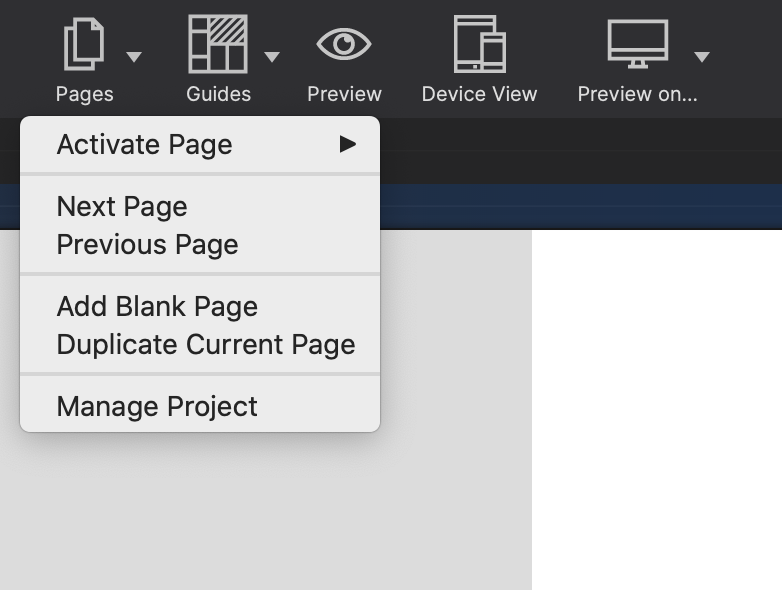
Click the leftmost icon in the toolbar — it looks like a stack of pages. The Page Manager panel opens on the left side of the workspace. You can also press Ctrl+Shift+P (Windows) or Cmd+Shift+P (macOS).
The page list
Each row in the Page Manager represents one page in your project. Each row shows:
- Page icon — indicates the page type (HTML or PHP). A house icon marks the homepage.
- Page title — the human-readable name displayed in the panel and used as the default
<title>tag. - Filename — the file that will be generated on export (for example,
about.htmlorcontact.php). Shown in smaller text below the title.
Page types
HTML — Standard static HTML pages. The default type for new pages.
PHP — Pages that use PHP includes or server-side logic. The file extension changes to .php on export. All design features work the same way.
The homepage indicator
One page always serves as the homepage. It is marked with a house icon and always exports as index.html (or index.php for PHP type). To change the homepage, right-click any page and choose Set as Home.
Page count
The panel header shows the total number of pages in the project. There is no hard limit, but projects with large numbers of pages benefit from a clear naming convention to stay manageable.
Bulk operations
Hold Shift and click to select a range of pages. Hold Ctrl (Windows) or Cmd (macOS) and click to select non-contiguous pages. With multiple pages selected, you can:
- Delete all selected pages at once (right-click → Delete).
- Apply page property changes in batch (right-click → Properties — only shared fields are shown).
Keyboard shortcuts in the Page Manager
| Action | Shortcut |
|---|---|
| New page | N (with panel focused) |
| Duplicate selected page | Ctrl+D / Cmd+D |
| Delete selected page | Delete or Backspace |
| Open page properties | Enter or Return |
| Move page up | Alt+↑ |
| Move page down | Alt+↓ |