
Choosing a template
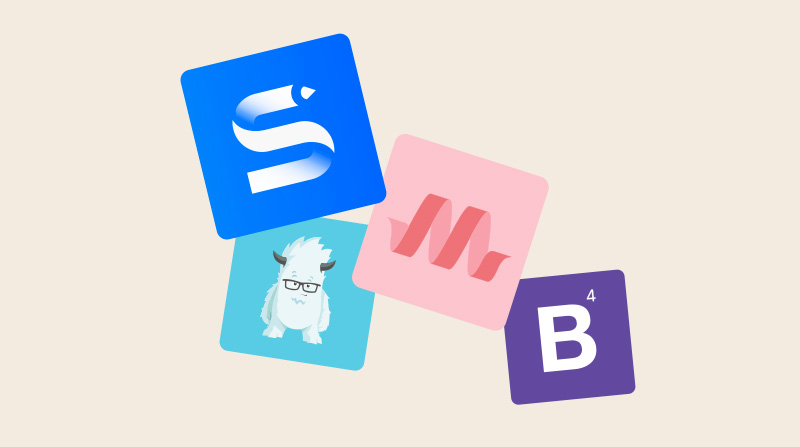
When you create a new project in Site Designer, you first choose between a CSS framework template or a blank canvas. This choice shapes the grid system, pre-built components, and responsive utilities available to you.
The four starting options
Foundation 6
Foundation by ZURB is a mobile-first front-end framework based on a flexible 12-column grid. It’s the most popular choice in Site Designer and has the most complete component library.
Choose Foundation if you:
- Want a robust grid system (12-column, fully responsive)
- Need a large library of pre-built UI components (navbars, cards, modals, sliders)
- Prefer semantic HTML class names (
.callout,.button,.card) - Are building a business or marketing site
Bootstrap 4
Bootstrap by Twitter is the world’s most widely used CSS framework. Site Designer supports Bootstrap 4 with its 12-column grid, extensive JavaScript components, and familiar utility classes.
Choose Bootstrap if you:
- Have experience with Bootstrap from other projects
- Want the broadest ecosystem of third-party themes and components
- Need
.d-flex,.container,.row,.col-md-6style utilities - Are building something where Bootstrap documentation applies directly
Materialize
Materialize is a CSS framework implementing Google’s Material Design language — cards, ripple effects, floating action buttons, and a distinctive visual style.
Choose Materialize if you:
- Want a Google Material Design aesthetic out of the box
- Are building a productivity app, dashboard, or admin interface
- Want the wave/ripple animation effects
Blank (no framework)
A blank project starts with only your own CSS — no framework classes, no grid system, no pre-built components. You have full control from the start.
Choose Blank if you:
- Prefer writing your own CSS utility classes
- Are using CSS Grid and Flexbox for layout directly (no framework grid needed)
- Want the lightest possible output (no framework stylesheet loaded)
- Are building a custom, highly specific design
Framework comparison
| Foundation | Bootstrap | Materialize | Blank | |
|---|---|---|---|---|
| Grid | 12-col flex | 12-col flex | 12-col flex | None (you choose) |
| Components | Extensive | Extensive | Moderate | None |
| Design style | Neutral | Neutral | Material Design | Custom |
| JS required | Optional | Optional (some) | Some | None |
| File size | ~110 KB | ~130 KB | ~100 KB | ~0 KB |
Choosing from the template library
After selecting a framework, you can choose a pre-built page template from the Template Manager. Templates give you a fully styled starting point — a homepage, landing page, blog layout, or portfolio — that you then customize.
-
Open the Template Manager
Click the Templates icon in the toolbar.
-
Filter by framework
Use the framework filter to show only templates compatible with your chosen framework.
-
Preview and apply
Click a template to preview it. Click Apply to use it as your starting page. You can apply additional templates to other pages in your project.